
Quality is very good & premium all good but price is little high
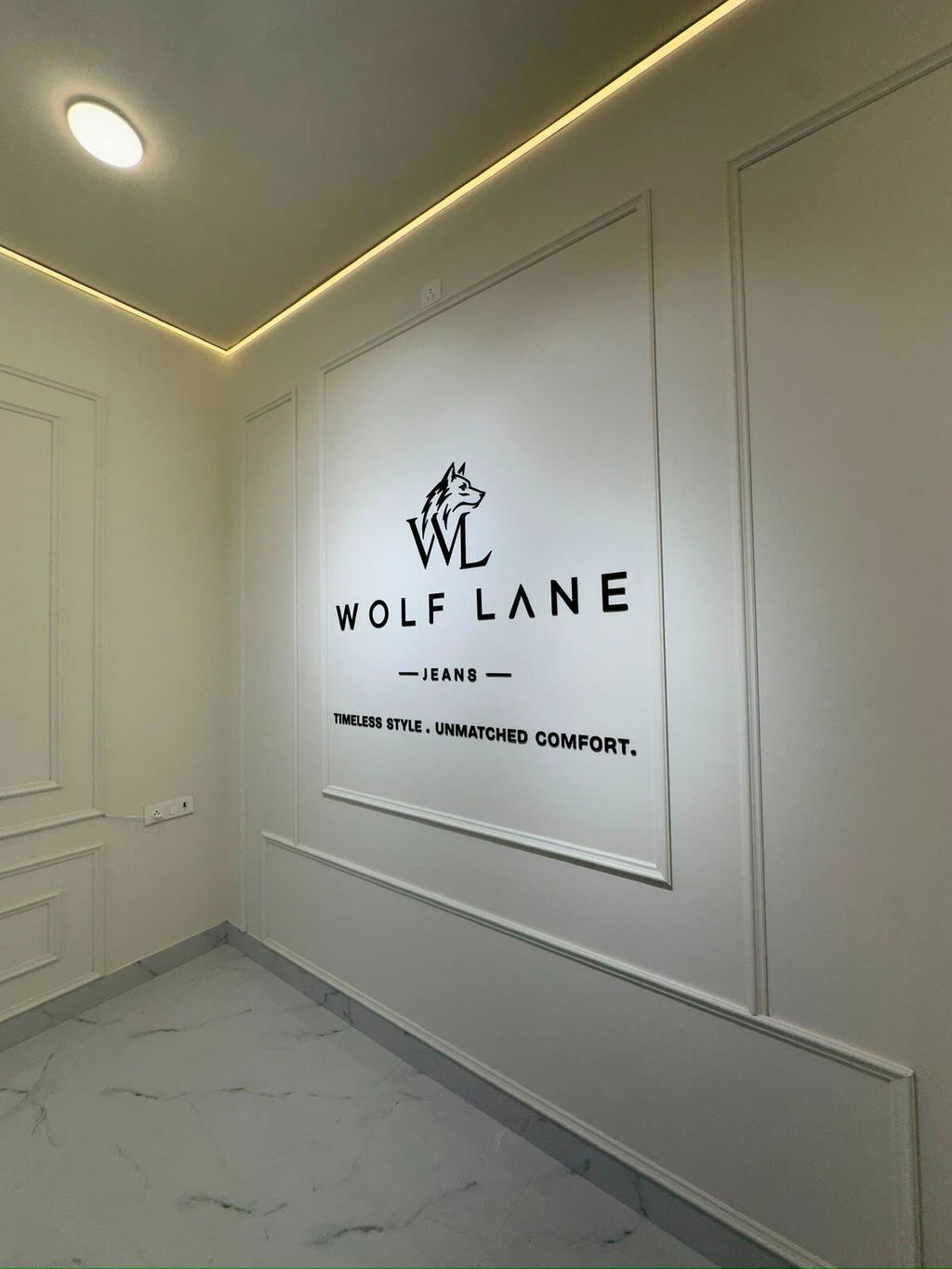
Hi Navreet, thank you for your kind words! We're glad you appreciate the premium quality of our custom acrylic signs. We strive to offer top-notch products that stand out.
Really impressed with delivery and quality of the product
Thank you for your kind words! We're thrilled to hear you're happy with the delivery and quality. We look forward to serving you again!
Abstract: City Landscape Painting - Premium Wall Art
Very good quality name plate. The logo printing is clear and the finishing looks premium. It was delivered on time and the product is exactly as shown in the pictures. Happy with the purchase.
Great service
Thank you for your wonderful feedback! We're delighted you loved the quality of your name plate. We appreciate your support and look forward to serving you again!